

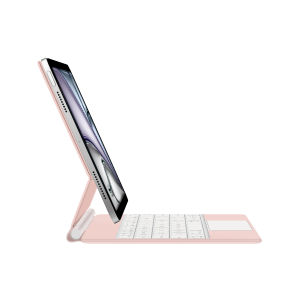
LFOIQN Magic Keyboard For iPad Air 11 Inch M3 M2 Air 5 4 iPad Pro 11 4th 3rd 2nd 1st Generation 2018-2022 Cover Case Multi-touch
NoteMain image video display (for reference only)Magic Keyboard Colorful backlight, intelligent touch control,Magnetic levitation,Wireless Keyboard connection, PU materialApplicable Models and Model code :This style of keyboard cover is compatible with these 8 models. Please confirm your machine model before purchasing to avoid purchasing errors!The camera holes on the keyboard cover have been upgraded to square holes. If you mind, please do not purchaseFor iPad Air 11 inch M3 2025 (Model code :A3266、A3267、A3270)For iPad Air 11 inch M2 2024 (Model code: A2902、A2903、A2904)For iPad Pro 11 2018 1st Generation (Model Code :A1980 、A1934 、A1979 、A2013)For iPad Pro 11 2020 2nd Generation (Model Code :A2228、 A2068、A2230 、A2231)For iPad Pro 11 2021 3rd Generation (Model Code:A2377、A2459、A2301、A2460)For iPad Pro 11 2022 4th Generation(Model Code:A2759 、A2435、 A2761、 A2762)For iPad Air 5th generation 10.9 inch 2022(Model Code:A2588、 A2589 、A2591)For iPad Air 4th generation 10.9 inch 2020(Model Code:A2316、A2324、A2325、A2072)Note: Tablet and stylus are not included in the packaging!![ Note:Only the corresponding machine model can be magnetically attracted. If your machine is not of the following model, please do not purchase it!!! ]Please confirm your machine model before purchasing~Due to multiple model options available on this link, please make sure to confirm your machine model or code before making a purchase in order to select the correct option. If you make a wrong purchase, you will be responsible for it yourselfConnect for iPad: Turn on the keyboard switch and press Fn+C at the same time. The keyboard light will flash. Open the for iPad BT and search for BT Keyboard. Click to connect and pair successfullyProduct Details:1. Number of keys: 64 keys2. Battery: Lithium battery 500mAh3. Stand-by time: 150 days4. Working Time: 5 hours (with backlit on), 120 hours (with backlit off)5. Working Voltage: 3.0 - 4.2V6. Charging current:<250 mA7. Effective distance: 10 meters8. Backlit Light: 7 colors backlit9. Charge Port: Type-c10. Material: PU Leather11. Key life:3 million12. Charging times: 3 hours13. Color: Black,WhiteProduct includes: keyboard cover x1, charging cable x1, instruction manual x1【Product physical picture for reference】Supports for iPad touchpad shortcut gesture function, the button function is very user-friendly, the material feels very good, and typing and input are very comfortable,It is very worthwhile for you to purchase and wait for an excellent keyboard[Portable style key]:Our new professional key frame design provides the best key travel for clean and accurate keys, as well as a comfortable and easy writing experience.Regarding the layout of keyboards in various languages, please read the following before purchasing. If you cannot accept it, please do not purchase!Atention PleaseEnglish versionkeyboard : There are English letters on the keyboard only.Multi-language versionkeyboard : English letters and carved language letters together ..【For example, if you choose French, the keyboard will display English and French letters. Please note that the same letters will not be engraved repeatedly】1. Our keyboard language layout is based on the English US layout with added features such as Spanish, Portuguese, Arabic, German, French, Japanese, Korean, Russian, Hebrew, etc. Its physical layout is the same as the picture below, and your keyboard will have two language layouts.(Due to material reasons, the characters carved from the white keyboard are dark gray)2.If there are some characters on the keyboard you receive that cannot be implemented, you need to switch to English layout before you can use them. If there is a conflict between adding burned language and English US layout, please refer to the actual picture below.3. Some special characters in certain countries, such as @ # ¥%&, require a combination of 【 shift 】 or 【 option 】 on the keyboard to be inputted and displayed.4.After connecting the keyboard, open iPad Settings - General - Keyboard - Keyboard - Add New Keyboard (add the language you need) After adding the language, switch input methods: simply click the (control+spacebar.) button (select the language you need)【Multi language layout template for reference only】

GlobalTechMart
Review

You May Also Like
CRENOV | Adjustable Desk Phone Stand
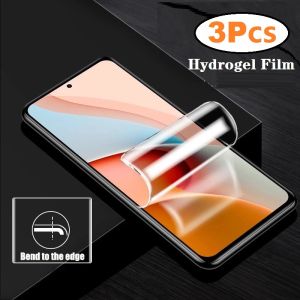
3Pcs Hydrogel Film For Xiaomi Redmi 14C 14R 13 13x Turbo 4 A5 A4 A3x A3 Soft Screen Protector
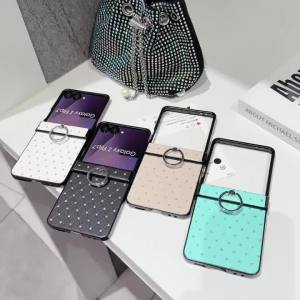
szhaiyu | Luxury Leather Diamond Glitter Ring Phone Case for Samsung Galaxy Z Flip 7 6 5 4 3 5G Flip7 FE Hinge Protect Shockproof Cover
![[24 hours ship] 2025Hoco H87 Car phone holder suction cup suction vacuum Suitable for Windscreen Dashboard Cup Holder Car Seat Car holder universal holder](https://img.lazcdn.com/g/ff/kf/Sf11e31cb89de4f1ab7437325546c940fp.png_300x300q80.png)
[24 hours ship] 2025Hoco H87 Car phone holder suction cup suction vacuum Suitable for Windscreen Dashboard Cup Holder Car Seat Car holder universal holder
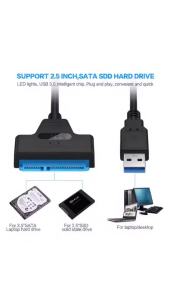
SATA to USB 3.0/2.0 Cable 6Gbps 2.5 Inch External HDD SSD Adapter SATA 3 22 Pin to USB 3.0 Sata III Cord for Hard Drive
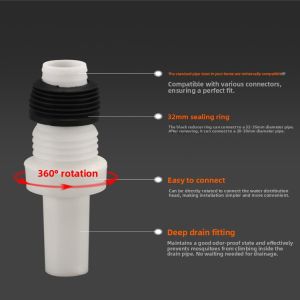
90 Degree Drain Pipe Elbow Connector for Washing Machine
PULWTOP MacBook Pro Docking Station Dual Monitor Macbook Pro Dock with 2*HDMI 4K 60HzPDEthernetUSB A/C 10GbpsSD/TF USB 2.0
Ulanzi MA57 Magnetic Phone Holder Carabiner Mount Tripod Selfie Stick
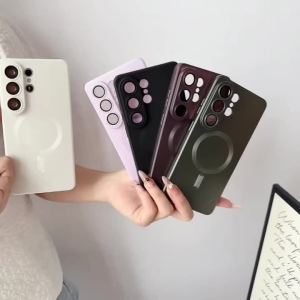
Luxury Matte Lens Protect Phone Case For Magsafe For Samsung Galaxy S26 Ultra S25 S24 S23 S22 S21 Plus Shockproof Soft Cover
Teal Daisy For Magnetic Phone Case for IPhone 17 16 15 14 13 Pro Max Plus Single Double-layer tough Case
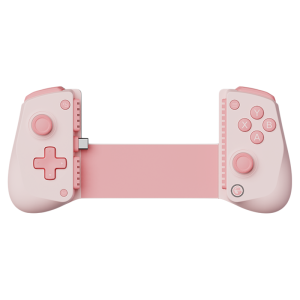
GameSir | Phone and Tablet Game Controller With Cooling Function