

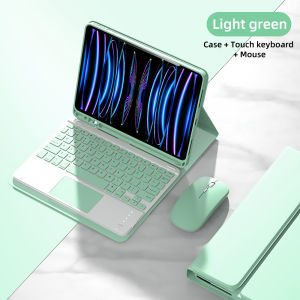
Case for iPad Pro 11 Inch Magnetic Keyboard Cover for iPad Pro 11 Inch 2018 2020 2021 2022 for iPad Pro 11 Smart Stand Cover
Please confirm your machine model before purchasing~For iPad Pro 1st 11inch (2018) A1934/A1979/A1980/A2013iPad Pro 2nd 11inch (2020) A2228/A2231/A2068/A2230iPad Pro 3nd 11inch (2021) A2377/A2459/A2301/A2460iPad Pro 4th 11inch (2022) A2759/A2435/A2761/A2762 Tablet.Please confirm the language keyboard you needwe will customize the engraving keyboard language for you according to your choicePlease confirm each combination of the product before purchasing. Note the first basic image of each color version, which will most accurately reflect the color combination of the product.Please confirm the keyboard language before purchasing, we will deliver the goods to you according to the color combination you have selectedNote:The digital tablet and stylus are not included in the package. The detailed description is for reference only. Please refer to the actual product for the color of the product.Office learning business fashionComfortable solution to your office, study and entertainment needs.Magnetic Adsorption Keyboard dismountable the Bluetooth Keyboard Can Be Used SeparatelyTriangular stable design Stable support, anti-slip protectionCellular heat dissipationHoneycomb cooling design Keep the iPad temperature normalHigh end ABS Material KeyboardQuality Material+PC Back shellPrecise perforation of soft material The soft material can protect the plate from bumps and fallsNotebook button quiet and comfortable rebound ColourfulA colour that's just right for you A wide range of colours to add a touch of chic to your day.How to connect keyboard & Mouse?1,Connect the mouse first, then connect the keyboard.2,Mouse:Push the switch to the "Bluetooth" icon, find the Bluetooth connection with "Mouse" in the device Bluetooth list.3,Normal Keyboard:Push the switch in the upper right corner to "ON", press "Connect", and find the Bluetooth connection with "Keyboard" in the device Bluetooth list.4,Touchpad Keyboard:turn on keyboard ,press Fn+C to,then find the Bluetooth connection with "Keyboard" in the device Bluetooth list.FAQQ:What should I pay attention to when connecting the mouse for the first time?A:When the mouse is connected for the first time, you need to press the left button, the right button and the scroll wheel at the same time for about 3-5 seconds.Q: Is the scroll direction of the mouse USB connector and Bluetooth connection the same?A: No, they are different. When using the USB connector, the scroll wheel slides in the same direction as the computer mouse. Bluetooth connection is the opposite.Q: How to switch between different systems?A: Fn+Q=Android, Fn+W=Windows, Fn+E=IOS.Please note that please switch the system before connecting the tablet.Q:The bluetooth keyboard letters are messy?A: Please check the settings according to the prompts,a. Check whether the keyboard language set on the device is English.b. Disconnect the keyboard Bluetooth, click Ignore the connected device, reopen the Bluetooth keyboard, select system, Fn+E (IOS system).Note: Fn+Q=Android, Fn+W=Windows, Fn+E=IOSc. Press the L S Z buttons at the same time to reset the keyboardQ:How to configure the input method for different languages keyboard?A:Take the samsung tablet as example,open "Settings--"ystem"--"Language & input"--"Add New Keyboard". (For other systems, please set them in the system settings according to the tips of the iPad example.)Q:How does the mouse change teh scroll wheel sliding direction on the device?A: The mouse is connected, open "General" - "Trackpad & Mouse" - close "Natural Scrolling".

Global Merch Park
Review

You May Also Like
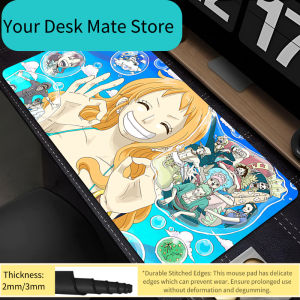
Bandai | Mouse Pad one piece Nami Gaming Accessories PC Gamer alfombrilla Computer Desk Mat Laptop Varmilo Keyboard Pad Mousepad
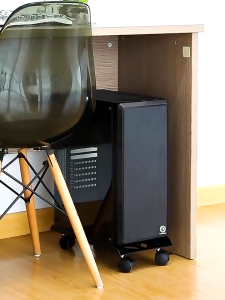
Adjustable CPU Roller Stand with Wheels for Computer PC Case
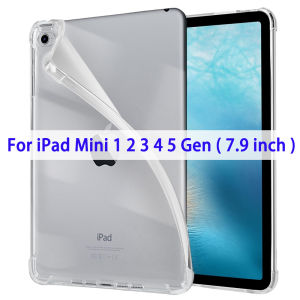
Case For iPad Mini 1 2 3 4 5 Generation (7.9-inch) Clear Soft TPU Slim Lightweight Transparent Shockproof Back Cover Shell
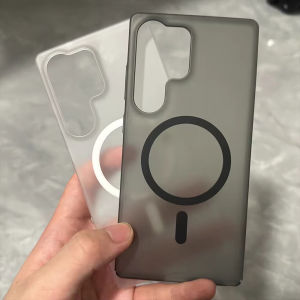
Ultra Thin Matte Clear Magnetic Phone Case For Samsung S26 Ultra Plus S24 FE S25 Edge S23 S22 Wireless Charging Shockproof Cover
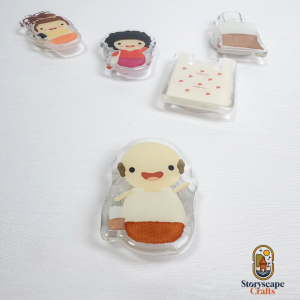
Phone Grips (Local Citizen Series 🇸🇬)
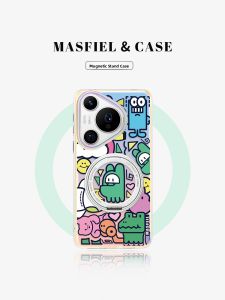
MASFEIL | Magnetic Adsorption Phone Case with Stand For Pura8 Mate70Pro Full Protection

mengto studio | Cute and Stylish USB 3.0 Expander Type C Hub Multi-Port Adapter 4-in-1
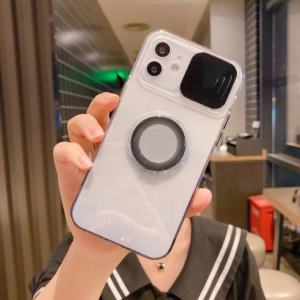
Screen Protector & Slide Camera Cover & Kickstand Compatible iphone case
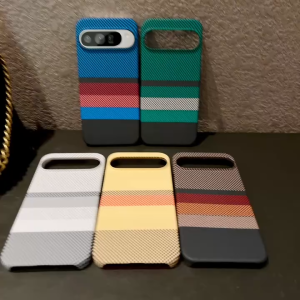
Luxury Ultra Thin Carbon Fiber for MagSafe Magnetic Phone Case For Honor Magic 8 Pro Wireless Charge Slim Cover
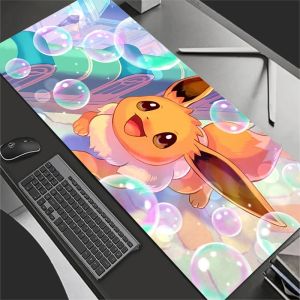
Bandai | Mouse Pad P-Pokemons Eevee Kawaii Gaming Accessories Notbook Computer Speed Mini Pc Gamer Keyboard Desk Mat Mousepad

TUMAO | Cute Silent Mahjong Sound Wired Mechanical Keyboard for Women