

Case for Samsung Galaxy Tab S6 Lite 10.4 Inch Detachable Keyboard Cover for Samsung Tab S6 Lite 10.4-inch 2020/2022/2024
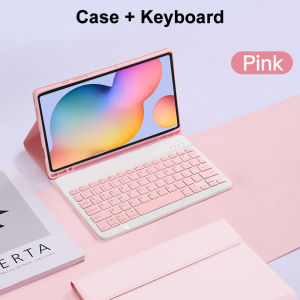
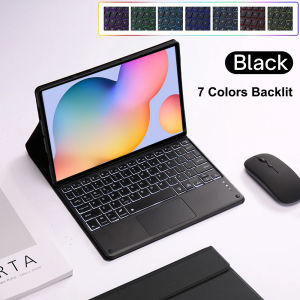
Please confirm your machine model before purchasing~For Samsung Galaxy Tab S6 lite 10.4 inch 2020 (SM-P610/P615/P617) Samsung Galaxy Tab S6 lite 10.4 inch 2022 (SM-P613/P619) Samsung Galaxy Tab S6 lite 10.4 inch 2024 (SM-P620/P625) tabletPlease confirm the language keyboard you needwe will customize the engraving keyboard language for you according to your choicePlease confirm each combination of the product before purchasing. Note the first basic image of each color version, which will most accurately reflect the color combination of the product.Please confirm the keyboard language before purchasing, we will deliver the goods to you according to the color combination you have selectedNote:The digital tablet and stylus are not included in the package. The detailed description is for reference only. Please refer to the actual product for the color of the product.Notebook button quiet and comfortable rebound The notebook the same key structure micro grinding tactility,typing feel is goodReady to use,suitable for all your occasionsCellular heat dissipation Honeycomb cooling design keep the ipad temperature normalMore View AnglesColourfulA colour that's just right for youA wide range of colours to add a touch of chic to your day.Bluetooth direct connectionTablet becomes notebookThe delay-free keyboard connects to any Bluetooth deviceHow to connect keyboard & Mouse?1,Connect the mouse first, then connect the keyboard.2,Mouse:Push the switch to the "Bluetooth" icon, find the Bluetooth connection with "Mouse" in the device Bluetooth list.3,Normal Keyboard:Push the switch in the upper right corner to "ON", press "Connect", and find the Bluetooth connection with "Keyboard" in the device Bluetooth list.4,Touchpad Keyboard:turn on keyboard ,press Fn+C to,then find the Bluetooth connection with "Keyboard" in the device Bluetooth list.FAQQ:What should I pay attention to when connecting the mouse for the first time?A:When the mouse is connected for the first time, you need to press the left button, the right button and the scroll wheel at the same time for about 3-5 seconds.Q: Is the scroll direction of the mouse USB connector and Bluetooth connection the same?A: No, they are different. When using the USB connector, the scroll wheel slides in the same direction as the computer mouse. Bluetooth connection is the opposite.Q: How to switch between different systems?A: Fn+Q=Android, Fn+W=Windows, Fn+E=IOS.Please note that please switch the system before connecting the tablet.Q:The bluetooth keyboard letters are messy?A: Please check the settings according to the prompts,a. Check whether the keyboard language set on the device is English.b. Disconnect the keyboard Bluetooth, click Ignore the connected device, reopen the Bluetooth keyboard, select system, Fn+E (IOS system).Note: Fn+Q=Android, Fn+W=Windows, Fn+E=IOSc. Press the L S Z buttons at the same time to reset the keyboardQ:How to configure the input method for different languages keyboard?A:Take the samsung tablet as example,open "Settings--"ystem"--"Language & input"--"Add New Keyboard". (For other systems, please set them in the system settings according to the tips of the iPad example.)Q:How does the mouse change teh scroll wheel sliding direction on the device?A: The mouse is connected, open "General" - "Trackpad & Mouse" - close "Natural Scrolling".

Global Merch Park
Review

You May Also Like
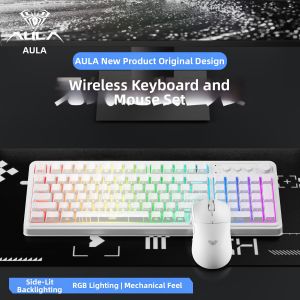
AULA-MOJING | Three-mode Bluetooth Wireless Keyboard Quiet Gaming & Office

HumaneX | Swivel TV Monitor Stand 57 inch
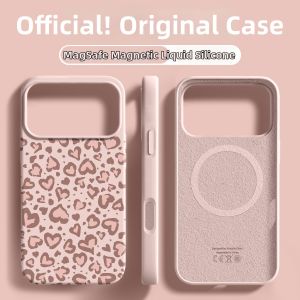
pinsai | iPhone 17 Pro Max New Silicone Anti-Fall Phone Case
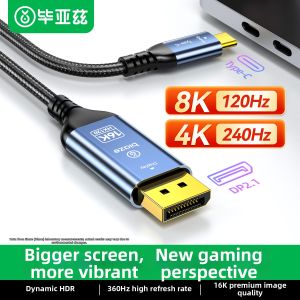
biaze | Type-C to DisplayPort Adapter 2.1 16K30/360Hz High Refresh Rate for MacBook Pro Thunderbolt 4/3 USB-C External Monitor
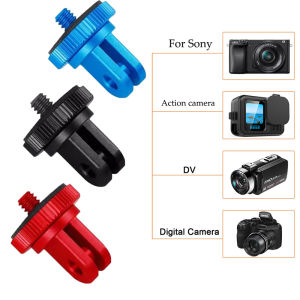
For Insta360 X5/X4 Aluminum Alloy 1/4 Inch Tripod Mount Adapter for DJI Action 5/4 GoPro 13/12 and Other Standard 1/4 Camera
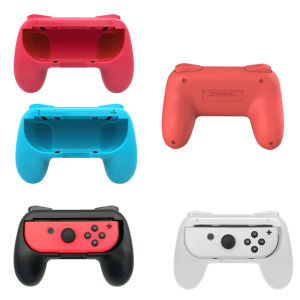
2Psc Wear Resistant Handle Controller for Switch Ergonomic Hand Grip Controller Handle for Switch OLED Joy Con
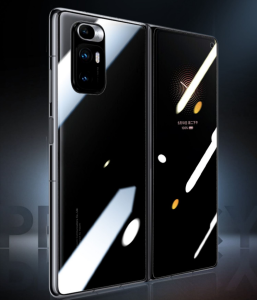
Universal Foldable Phone Screen Protector Film Flexible and Scratch-resistant

Teaching Portable Laser Pen For Teacher 5MW Durable Green Black Strong Visible Light 3 Color Beam Powerful PointerCat Teaser Laser Pen

Bandai | Mouse Pad XXL Anya Forger Keyboard Pads Anime Loid Forger Mouse Mat Yor Forger Deskpad
【🔥SG STOCK🔥】RICHMENTMALL Clear/Privacy Tempered Glass Screen Protector For Samsung Galaxy Watch 8 Classic Ultra Galaxy Watch8 Film

Zagg Pro Keys Bluetooth Keyboard and Detachable Case for iPad (A16)/10.9 (10th Gen) | 2 Years Warranty