

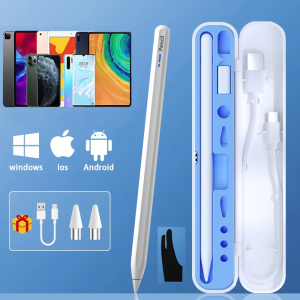
Lenovo | 2026NEW Lenovo Thinkplus Universal BP16 Touch Pen For Tablet Mobile Android ios Phone iPad Accessories Drawing Tablet Stylus Pen
If you use Samsung mobile phone, Samsung tablet, Microsoft tablet, electromagnetic screen products, please do not place an order for this link product.Notice:1. Tablet devices and pens cannot be used while charging.2. The tempered film on the flat plate is too thick and affects the sensing. We are equipped with a piercing pen tip, and the instruction manual also clearly states this kind of clearance. If the contact is insensitive, a penetrating pen tip can be used.3. The device has been connected to other capacitive pens and needs to be disconnected. You must open other capacitive pens before you can connect a new capacitive pen. Our manual has relevant instructions.4. During use of the capacitive pen, your hands cannot touch the screen. The touch screen cannot be used (the manual has relevant instructions), or use an anti-accidental touch finger. set.5.The universal pen needs to be tilted at least 15 degrees to write normally, and it cannot be used vertically.6.Do not use Apple type-c tcharging cable for charging7.Some drawing software and notebook software cannot write and require some pen settings. Please be aware of the non-pen quality issues.How to set up some software:1、SketchBook1. Open the "SketchBook" software.2. Click on the "Main Menu".3. Click on "Preferences".4. Click onGeneral".5. Turn on/off "Pen Mode".2、Procreate1. Open the "Procreate" software2. Click the top left corner of the painting interface, click the wrench3. Click on gesture control4. Select enable finger painting3、GoodNote1. Open the "GoodNote" software2. Click on the top right corner of the painting page, click on the three option3. Scroll down to select the stylus and prevent accidental touches4. Click on the smart stylus, select none inside4、NOtability1. Open the "Notability" app2. Open the drawing page, click the three dots option in the top right corner3. Click Information, disconnect Apple Pencil5、Notes 1. Update to the latest version2. Open the "Notes " app3. Click on the painting page and select the three in the lower right corner4. Click on the pen palette settings and scroll to the bottom 5. Turn on finger painting6.Apple iPad Notes1. Open the tablet settings and find Apple Pencil2. Turn off Scribble and Doodle3. Open the page and select the stroke7.Paint the World1. Open the "Paint the World" software2. Open the painting page, click the gear in the top corner4. Close "Pen Mode"8.Noteshelf1. Open the "Noteshelf" software2. Open the drawing page, click the three dots in the top right3. Select the stylus4. Turn off the "Apple Pencil" modeIf it is not the above software, you can refer to the above, most of the setting methods are the same.

Prime Supply_Play Life
Review

You May Also Like
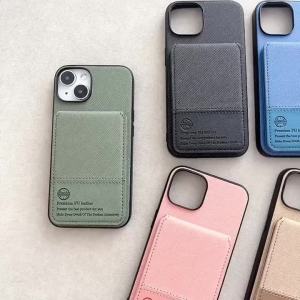
RFID Leather Wallet Card Phone Case for Samsung Galaxy S26 Ultra S25 S24 FE S23 S22 S21 Plus A57 A37 A17 A07 A56 A36 A26 Cover

Boho Braided Cotton Phone Lanyard Woven Macrame Crossbody Strap with Clear TPU Connector Hands-Free Neck Carry for Smartphones
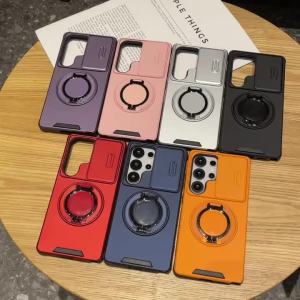
szhaiyu | 360° Rotating Metal Ring Holder Phone Case for Samsung S26 S25 S22 S21 Ultra S24 S23 Plus A37 A17 A56 A36 Hard Anti-Fall Cover
BAJEAL K200 Wired Mechanical Keyboard 87 Keys Portable with Colorful LED Backlighting for Laptops And Desktops - Blue Switches
Purple Diagonal Plaid Luxury Fashion Full Lens Protective Case for Samsung Galaxy S26 S25 S24 A56 A36 Plus Ultra
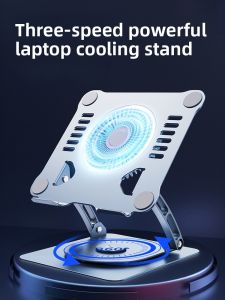
Earise | Cooling Fan for Laptop with 360° Rotation Large Airflow Silent Operation Adjustable Height Foldable Design
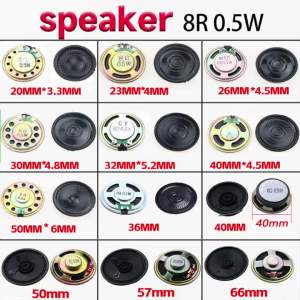
2PCS Speaker Horn 4R 3W 5W Diameter 36mm 40mm 45mm 50mm 52mm 57mm 78mm Amplifier Rubber Gasket Loudspeaker Trumpet 4 ohm
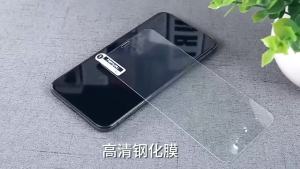
1-5Pcs HD Clear Full Cover Tempered Glass For iPhone 18 Pro 17 Air 16 15 14 13 11 12 Pro Max X XR XS 7 8 Plus Screen Protectors

AULA | E-Sports Three-Mode Mechanical Keyboard and Mouse Set

ASUS ROG Keris Wireless AimPoint Gaming Mouse – Tri-Mode Wireless 36K DPI AimPoint Sensor & Lightweight Design
5.5OEM S7 Edge For Samsung S7 EDGE G935 G935F LCD Display Touch Screen Digitizer Assembly Replacement