

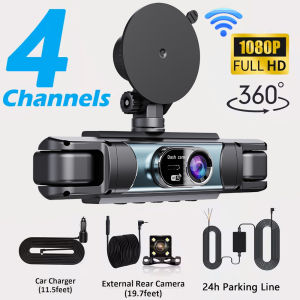
360° Car DVR WIFI Dash Cam 3/4 Lens Front Rear Left Right Inside IPS Screen Rotatable Lens Night Vision 24H Parking Black Box
Please note:3 lenses: front left and right lenses4 lenses: front and back left and right lenses,This product can display 4 images simultaneously by selecting 4 lensesAll products listed under this link include Wi-Fi functionality, allowing you to connect to Wi-Fi and use the app to quickly view videos and photos.Please order according to your needs, the picture when ordering has all the information of accessories for reference!2026 3 channels or 4 Channels WIFI Dash Cam for Cars4 Channels 1080P Dash cam 4-camera simultaneous displayONLY Front Camera: 1080P;3lens Front &left&roght Camera :1080P+720P+720P4lens Front &right&left&rear Camera :1080P+720P+720P+720PWIFI & APPThe Wi-Fi feature allows you to quickly view or download video files via the mobile app. It supports quick sharing of video evidence to social media sites or with your friends.How to Connect via Wi-Fi:1. Download the app to your phone.2. After powering on the dashcam, go to Settings and turn on the Wi-Fi switch.3. On the Wi-Fi page, you’ll see the Wi-Fi signal and password; use your phone to connect.4. Open the app and connect to the dashcam.5. Connection complete.Turning off the Wi-Fi interface disables the Wi-Fi signal; it is normal to be unable to connect to your phone at this time. If you need to continue using the app’s features, do not turn off the Wi-Fi on the dashcam’s settings page.Starlight Night VisionWith the help of F2.0 wide aperture and the decent low-lightperformance of the lens, the car camera is able to capturedetails like license plates at night.Support reverse cameraOptional AccessoriesBuilt-in G-sensorWhen your car is subjected to an impact or other emergency,the G sensor is triggered, so that the recorder immediately records and locks the video.Loop- Cycle RecordingWhen the TF card is full,it will automatically delete former video and keep recording all the timeAbout 24-Hour Parking MonitoringIf you need the 24 hour parking monitoring function, you can order the corresponding Buck Line accessories to replace the car charger.Through Buck Line, the DVR power can be obtained directly from the car battery or car ACC, so that the DVR can maintain normal recording work even when the car is turned off.(Since different car models have different battery interfaces or ACC interfaces, it is not recommended to install it by yourself. It is recommended to find a professional to install the Buck Line.)Installation Diagram1.Secure the recorder to the windshield of the vehicle , recommended near the rearview mirror area2.Hide the power cord in the window gap along the red line in the figure above3.Insert the car charge wire into the cigarette lighter, connect the power supply, and complete the installationImportant Installation Tips!! Be sure to read before testing!Common Knowledge: Dashcams are designed to be permanently connected to the vehicle’s power supply. Due to high temperatures inside the vehicle, in-car electronics typically use safe, heat-resistant, low-capacity lithium batteries. These batteries are only used to update the system time and cannot be recharged; the device cannot operate for extended periods without a power source. Be sure to install the car cigarette lighter adapter as instructed.Note: Do not connect a smartphone charging cable, as smartphone charging cables do not meet the requirements for in-car electronics and may cause the device to freeze, crash, or experience repeated power cycles.Please note: the test power to use the car charger in the package, please do not use a cell phone charger or rechargeable treasure, when replacing the adapter, please match the car charging voltages in the package, mismatched voltages may lead to failure to work properly.To protect your privacy, the TF card needs to be formatted for the first time. There are two solutions:1. Insert the TF card correctly into the dash cam, open the camera settings, find the storage card format, confirm that the formatting is complete, and then restart the camera to use.2.Connect to the mobile application, search for settings in the mobile application, format the memory card, confirm formatting is complete, and then restart the camera to use it. Sincere wishes to you and your family.Memory card is a consumable, need regular maintenance, please format 1~3 times a month, please do not pull out when the recorder is on, it may damage the chip, there will be file errors, please replace the memory card when this happens.

Prime Supply_Play Life
Review

You May Also Like

Car Wash Microfiber Towel 30x30/60CM Car Cleaning Drying Cloth Hemming Car Care Cloth Detailing Car Wash Towel

Hand Guard Safety Bar Aluminum

Harbin Mounted Spherical Plain Bearing

For MG RX5 PLUS 2023-2024 Fender Mudflaps Splash Guards Mudguards Mud Flaps Car Accessories

100% Authentic Sanrio Hello Kitty Car Wireless Charger with Automatic Induction Fast Charging and Car Mount for Air Vent and Navigation Car Phone Holder Compatible with iOS & Android Smartphone Kuromi WCK1

WEILIXINJINGGONG | High Compression Medium Load Rectangular Coil Springs

UGREEN Car Magnetic Holder for iPhone 16 15 14 13 Pro Max 15 Plus Samsung Galaxy S25 Ultra S24 Huawei Xiaomi Oneplus

Decorative Seat Cover

BOSCH Aerotwin Premium Car Wiper (U-Hook) For Asian Cars Honda Toyota Mazda Hyundai Kia Nissan Ford

Chief | Engine Carbon Removal Interior & Oil Path Cleaning Agent

car cover toyota vios sedan waterproof for sun protection auto exterior covers all weather Raize Camry Fortuner Hilux Pickup SUV hatchback Universal