

Local Backlight Air Mouse Wireless Remote Control GyroscopeKeyboard Dual Mode BT5.2 / 2.4G for Android Smart TV PC
Veltsome to ur store✨All products are shipped from China.There are promotions in the store.Buy multiple items for a better deal.Customers can check the product details page for more information.If you have any questions, you can contact the administrator.If you click the wrong order or want to change your address and phone number, please cancel the order immediately and place a new order.Please check the color, size, name, address, and phone number after placing the order, as we will not be able to resolve the issue for you.Note:How to switch to BT mode?1.The long "OK" + "Home" button requires you to press and hold the "OK" + "Home" buttons when the LED light turns and flashes rapidly; thekeyboard will enter preparation mode.2.For example, on a computer, click "Add new device" on the main device, such as a computer. You will find the name of thekeyboard "M5". Select M5 to pair and connect thiskeyboard.Description:(1) 2.4G mode:2.4G mode: For first-time use, plug the USB receiver into the device's USB port and wait 20-60 seconds for the USB receiver driver to install. The mouse cursor can move on the screen, which means pairing is successful.Press and hold the [OK] and [BACK] buttons, the LED light will start blinking. Pairing will be successful when the LED light stops blinking.(2) BT 5.0 mode:1.Before using this device, you must first turn on the BT function of the device.2.Then press the "OK + Return" button. When the LED light flashes rapidly, the product will enter pre-pairing mode.3.Click on "Add new device search" on the main device to search for this air remote name (Example: BT-REMOTE). Click on the name to connect.4.After successfully connecting the product, you can control the direction of the mouse pointer by waving your hand back and forth in the air.5.If the connection is unsuccessful, please follow the steps in items 2-4 again.6.New connection performance description: The normal connection time of this product is 3-5 seconds after pairing with the main device as usual.7.This product can only remember the pairing information of one main device. When the product connects to a new device, it will not support connecting historical devices afterwards.In this case8.In this case, you need to delete the connection history data of this peripheral device that has been successfully paired for a new search.CPI (counts per inch) is the speed of the mouse.Adjustment (3 levels), 1, 2, 3 levels. The higher the level, the faster the speed. The starting speed is set at level 2.1 .Increase speed:Press the OK + Quantity + ] button for about 3 seconds. The operation indicator will flash rapidly and then turn off. Release the button, CPI will increase by 1 level from the original.2 .Reduce speed:Press [OK] + Volume - for about 3 seconds. The operation indicator will flash rapidly and then turn off. Release the button and the CPI rate will decrease by 1 level according to the original.

H-Mystery Alliance
Review

You May Also Like
Floor Projector Support Stand Metal Holder Multi-angle Adjustable 360 Rotating Projector Bracket for Film Video
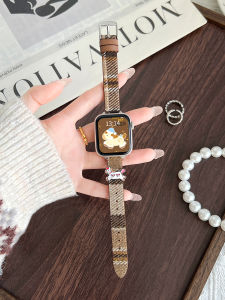
Uhada | Elegant Leather Watch Band for Women
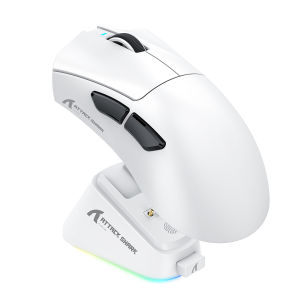
ATTACK SHARK | ATTACK SHARK V3PRO Tri-mode Gaming Mouse Ultra-Light 25000 DPI 1000Hz With Charging Dock
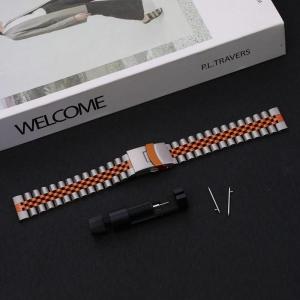
Men Stainless Steel Strap For Realme Watch 5 Smart Watch Band Realme Watch 3 3 Pro Bracelet Metal Strap

iSpring DFC3 Faucet Water Purifier for Kitchen Bathroom 1000L Long Life filters transparent visible window Replaceable filter cleanable filter Compatible with various faucets Cannot reduce TDS value
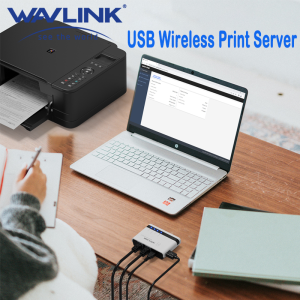
WAVLINK USB Wireless Print Server 10/100Mbps LAN/Bridge Support Wired/Standalone Modes Compatible With Windows/Mac Printers
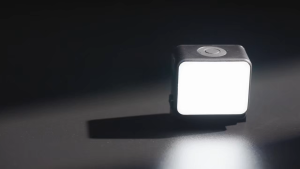
Ulanzi LM24 Mini LED Video Camera Light for DJI Osmo Nano / Action 6
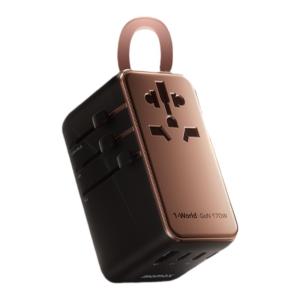
Momax | Global Universal Travel Power Adapter
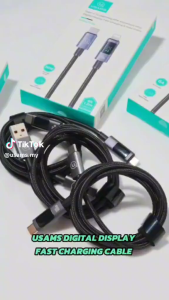
USAMS US-SJ678 Sufeng Series 0.25m Type-C to Type-C 60W Fasting Charging Cable Phone Data Cord Tarnish
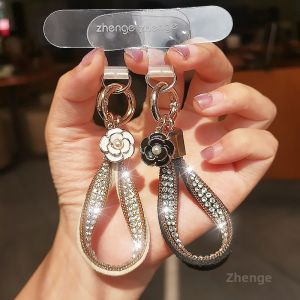
ZHENGEGE | Light Luxury Crystal Leather Phone Lanyard
JLD | Full Coverage Anti-Shock Anti-Fingerprint Tempered Glass Screen Protector Full Adhesive