

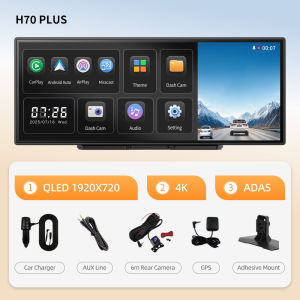
Imagebon 11.4″ H70 Plus Carplay 60fps Dashcam 4K ADAS Wireless Car Play & Android Auto Monitor Dual Video Recording Car DVR
Experience a smooth, high-definition CarPlay experience with 60FPS, say goodbye to lag and stuttering.Equipped with high-frame-rate CarPlay technology, each frame transition takes only 16.7ms. Navigation route updates, app switching, and music control are all incredibly smooth and responsive, completely eliminating the screen tearing and operational delays caused by low frame rates. Easy connection: Once your phone and in-car device are easily paired, CarPlay 60FPS high-frame-rate mode is automatically activated. Compatible with all iOS devices, even older iPhones can enjoy smooth interaction, making in-car interaction more responsive and responsive.9 Reasons to choose H70 Pus:(1)With UHD 4K(38402160)Front Camera,It can record picture with ultra-high clarity;(2)With QLED 1920720 Touch Screen,it has greater color purity,higher brightness,and more energy-efficient:(3)Buit-in 4 Core Rockchip:Cortex-RV1126B-A53 CPU:(4)Support Wireless CarPlay Android Auto(Connect with IOS Android Mobile Phone,not support huawei);(5)With Advanced Driver Assistance Systems;(6)Support Wireless Mirroring(Airplay for IOS mobile phone.,Miracast for Android mobile phone);(7)Time Lapse Monitoring:2h/8h/12/24h(need to purchse ACC cable);(8)Built-in WiFi:Install Roadcam app,achieve GPS Tracking.Live view,share,Dowload the recording video;(9)AHD 1080P,150 Wide Angle Real-time Rearview;4-core A53 CPUEquipped with a quad-core A53 chip, 1GB of RAM, and 3T of computing power, it delivers a consistently stable and smooth experience, along with smart screen interaction.Three UI optionsDiverse interactive experience, offering 3 UI styles to switch between at will.Wireless Phone Link:With wireless CarPlay(for Apple mobile phone) & Android Auto(for Android mobile phone),it can cast the apps on your mobile phone directly onto the device,and you can operate and use them directly on the device.Note:Not support huawei mobile phone.Wireless Mirror Link:Support wireless AirPlay(for Apple Mobile Phone) & Miracast(for Android Mobile Phone).The audio, video and screen mirroring content on mobile phones can be wirelessly transmitted to machine devices for playback.4K Front Camera + 1080P Rear Camera Dual Recording:H70 Pus has 11.4 inch IPS touch screen,QLED 1920720 resolution,with UHD 4K 38402160 170° wide angle front camera and 1080P 150° rear camera.It can capture all the detailed scenes on the road very clearly and record and save them.(if you need the rear camera,please choose with rear camera set meal)Advanced Driver Assistance SystemsDetect your surroundings and help you avoid accidents by real-time voice alert.(1)With Lane departure warning system ADAS function trigger conditions:If you are using a GPS active antenna, the system will only trigger a lane departure warning if your driving speed is above 50KM/h. If you are not using a GPS active antenna, there is no speed requirement, and the system will trigger a warning as long as a lane departure occurs.(2)With Forward Collision Warning System(3)With Front Vehicle Starting Reminder System:Please choose GPS Antenna,otherwise you can't use this function normally.UHD 4K Night Vision:Even on dim roads, it can clearly shoot and record the scenes of the vehicle's driving. It provides further protection for your driving safety.Built-in 5.8GHz+2.4GHz WiFi:Its stability far surpasses that of traditional WiFi. Even in an environment with complex signals, it can maintain a smooth connection and ensure uninterrupted video transmission.Aopt H.265 encoding technology:1.with higher compression efficiency-Compared with the previously widely used H.264 encoding technology, it can compress the size of video files to a smaller extent under the condition of the same video quality, thus enabling more content to be stored.2.Better picture quality performance-The H.265 encoding can reduce motion blur and image distortion, enabling the device to capture clearer and smoother images.Show In Multiple Interface :(1)Full Screen Start Window(3 different of Theme UI );(2)Split Screen Start Window(3 different of Theme UI );(3)CarPlay Mode; (4)Android Auto Mode;(5)Front or Rear View Full Screen;(6)Front + Rearview Split Screen;(7) Full Map; (8)Map+Music Split Screen; (9)Map+Music+Dashcam Split Screen;4 Types Of Audio Outputs:(1) Bluetooth Audio:a:For CarPlay or Android use only;b:Please use your phone to directly connect to the original car's Bluetooth;(2) AUX Out Audio:By using an AUX cable to connect with the vehicle's AUX interface, you can directly enjoy the original sound quality of the car. Low noise, high fidelity.(3) Dual-channel FM transmitter:It can be connected to the original car to enjoy the original car audio quality (only needs to be manually connected once, and then can be automatically connected).(4) Native Audio:Built in speaker,you can listen to the music via device directly.More Phone Link Functions:Under the CarPlay or Android Auto function,you can use voice assistant(such as Siri,Google etc),make a phone call,listen to music ,NavigationRoadcam APP Download & GPS Tracking:H70 Plus has GPS Tracking function,you can scan the below QR Code to download and install the APP,then you can Track your car's infromation on you mobile phone or computer,At the same time,you can share the recording video with your friend or other social platform.Loop Recording:Continuous loop recording automatically overwrites old files, ensuring the memory never overloads. It won't miss any crucial frames, safeguarding your driving safety.Time Lapse:(1) 2h,8h,12h,24h Monitoring;(2) Save Storage Space;(3) Never miss the key scene;Real-time Reversing View:(1)Adjustable Reversing line:(2)150° Wide Angle;(3)1080P 2.5mm mirroring rear camera(need to choose with rear camera version);(4)IP67 Waterproof;(5)Night Vision;Packing list:1 x Machine Body(H70 Plu,depends on your choice) 1 x Adhesive Mount;1 x Car Charger;1 x AUX Line;1 x 6m Rear Camera(Optional);1 x GPS Antenna(Optional);Q&A1.Why does it get stuck in the "welcome" interface after booting upPlease use our standard car charger(included in the package),Don't use USB cable or other car charger.2.Why does a restart occur after booting up?(1) Please use our standard car charger(included in the package),Don't use USB cable or other car charger;(2) Please use U3 high speed TF card;3. Which rear cameras are compatible with the product?The device is compatible with 2.5mm,4 pin,AHD 1080P Rear Camera4.How to do the Upgrade?(1) Download the firmware via below link:(2) Follow the video instructions to complete the version upgrade5.Why can't CarPlay connect?Please forget the connected Bluetooth and try to reconnect.(1)If the connection is still unsuccessful, try restarting the phone and the device, wait for 15 seconds, and then restart and try again.(2)If only the pop-up windows "Bluetooth Pairing Request" and "Allow Contacts and Favorites Sync" appear when connecting, but the pop-up window "Use CarPlay with "CarPlay" does not appear, please check whether the phone's "Settings > General > CarPlay" has a connected CarPlay, if yes, delete it and try again.6.Why can't Android Auto connect?(Update the Android Auto program on your phone and turn on wireless connection in the Auto settings)(1) Disconnect the Bluetooth connection of other devices on the phone, ignore the Bluetooth of the device, and try to connect again.(2) Restart the device and try to reconnect the Bluetooth of the phone.(3) Restart the phone and turn off the device for 15 seconds, then try to connect the Bluetooth again.Pls search for "Android Auto" on the phone(If the above methods still cannot connect), select "Settings > Android Auto > Connection Help", and follow the prompts in the connection help to operate. Then restart the device (turn it off for 10 seconds).

Prime Supply_Play Life
Review

You May Also Like
AITD | 2024 Model Specific Elantra Soft Rubber Mud Guards
Lanke Wiper Fit For Nissan Juke F15/F16 (2010-2025) Natural Rubber Strip Boneless Silent Car Windshield Wiper Auto Parts
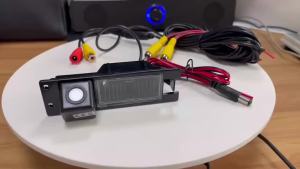
HD Reverse Car Rearview CameraRoom Electrical/Hard Wiringfor Opel Astra H J Corsa D Meriva A Vectra C Zafira B Grande Insignia
4K WiFi Touch Screen Car Dash Cam Dual Lens Front Rear Camera 24H Parking Monitor Auto Video Recorder Night Vision
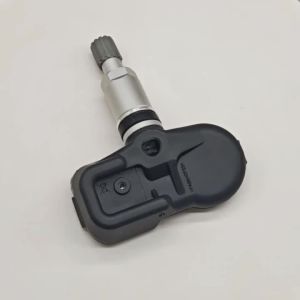
PMV-C210 For TOYOTA Avensis Auris RAV4 Yaris Verso 42607-02031 42607-02030 42607-30070 4PCS TPMS Car Tire Pressure Sensor 433MHZ
Dynamic Motorcycle Bicycle Rearview Mirror Decorative lights 3D Devil Eye USB Rechargeable LED Light Retrofit Kit GIF APP Contor

6 Inch Cr-V Mini Electronic Wire Stripping Pliers Diagonal Pliers Side Cutter Plastic Cable Nipper DIY Repair Tools
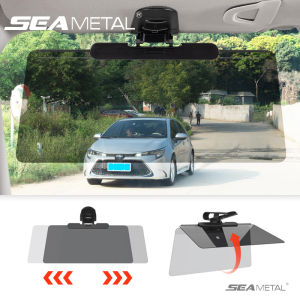
SEAMETAL Anti-Glare Sun Visor Car Shade Sun Protection Snow Blindness HD Visor Extender All Season Universal

STP | Carbon Cleaning Gasoline Additive
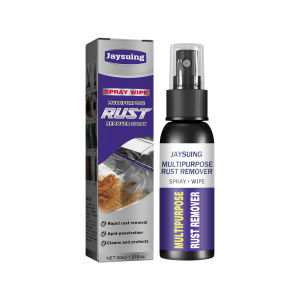
Googeer 50ml Metal rust remover Chrome Spray Paint Metal Silver Rust Remover Stainless Steel Aluminum Alloy Spray 50ML Motorcycle
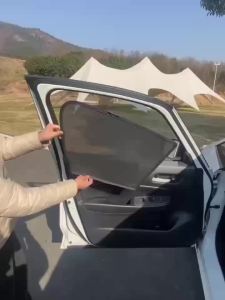
Suitable for BENZ A CLASS W177 2019+ car window sunshade front and side door sun baffle sunscreen insulating visor curtain mesh curtain front block glass sunshade.