

LFOIQN Smart Magic Keyboard For iPad 10th Generation 10.9" 2022 iPad A16 11 Inch 11th Gen 2025 Cover Case English Korean 한국어 키보드
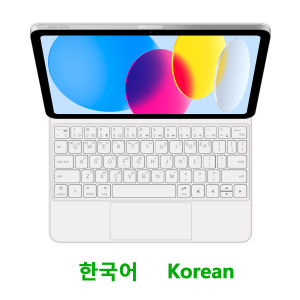
Magic Keyboard Colorful backlight, intelligent touch control,Magnetic levitation,Wireless Keyboard connection,Anti fouling and durable PU materialApplicable Models:[ Note:Only the corresponding machine model can be magnetically attracted!!! ]For iPad (A16)11 inch 2025(A3354、A3355、A3356)For iPad 10th generation 10.9 inch ( A2696、A2757、A2777、A3162 )The above two models of keyboard covers are universal !!!Note: Tablet and stylus are not included in the packaging!!【Note: Only the corresponding machine model can be magnetically attracted. If your machine is not of the above model, please do not purchase!!! 】Product Details:1. Number of keys: 64 keys2. Battery: Lithium battery 500mAh3. Stand-by time: 150 days4. Working Time: 5 hours (with backlit on), 120 hours (with backlit off)5. Working Voltage: 3.0 - 4.2V6. Charging current:7. Effective distance: 10 meters8. Backlit Light: 7 colors backlit9. Charge Port: Type-c10. Material: PU Leather11. Key life:3 million12. Charging times: 3 hours13. Color: Black,WhiteProduct includes: keyboard cover x1, charging cable x1, instruction manual x1【1】Bluetooth connection method: Turn on the keyboard switch, then hold down Fn+C for about 2-3 seconds to start Bluetooth, then turn on your tablet Bluetooth device, search for"BT Keyboard",and click connect to connect 。Note: If you do not use the keyboard for a long time, the keyboard will enter sleep mode and Bluetooth will automatically disconnect.The resolution of the machine is different, and there may be color differences in the images, which is a normal phenomenon. The actual product received shall prevail .【2】Open iPad Settings - Keyboard - Keyboard - Add New Keyboard - (Select the language you need) -After switching, press and hold the keyboard Control+Spacebar to switch to the input method you have selected and use it normally.【3】For detailed instructions, please read the user manual. If you have any questions, you can contact "Online Services" for consultation .1. Our keyboard language layout is based on the English US layout with added features such as Spanish, Portuguese, Arabic, German, French, Japanese, Korean, Russian, Hebrew, etc. Its physical layout is the same as the picture below, and your keyboard will have two language layouts.(Due to material reasons, the characters carved from the white keyboard are dark gray)2.If there are some characters on the keyboard you receive that cannot be implemented, you need to switch to English layout before you can use them. If there is a conflict between adding burned language and English US layout, please refer to the actual picture below.3. Some special characters in certain countries, such as @ # ¥%&, require a combination of 【 shift 】 or 【 option 】 on the keyboard to be inputted and displayed.4.After connecting the keyboard, open iPad Settings - General - Keyboard - Keyboard - Add New Keyboard (add the language you need) After adding the language, switch input methods: simply click the (Globe Key) button (select the language you need)Atention PleaseEnglish versionkeyboard : There are English letters on the keyboard only.Multi-language versionkeyboard : English letters and carved language letters together ..【For example, if you choose Korean, the keyboard will display English and Koreanletters. Please note that the same letters will not be engraved repeatedly】Note: Due to the material of the white keyboard, the engraved letters are dark gray.

Prime Supply_Play Life
Review

You May Also Like
Acefast C1-10 USB-C to HDMI 4K 60Hz Cable 1.8M Video Cable

llano | Dust Removal Multi-functional Cleaning Gel
Funda For Samsung Tab S6 Case 10.5 inch Trifold Magnetic PU Leather Hard Stand Smart Cover For Galaxy Tab S6 SM T860 T865 Case
rainbow watercolor wave line For Samsung Galaxy S26 S25 S24 A56 A36 Dual Layer Luxury Fashion Full Lens Protective Case
GGUU | Magsafe Magnetic Phone Case
PRE FILTER Water Filter Cartridge Washing Machine Filter with Adapter Bathroom Water Heater Toilet Household Purifier
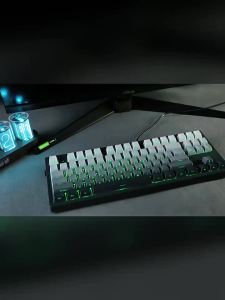
Gradient Keycaps Side Printed PBT Double Shot OEM Profile for MX Switches Gaming Keyboard 130 Key Caps
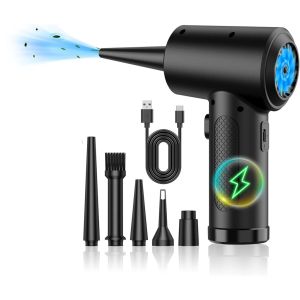
51000RPM Compressed Air Duster Keyboard Cleaner for Office Electric Cordless Air Duster PC Cleaning Air Blower Car Duster
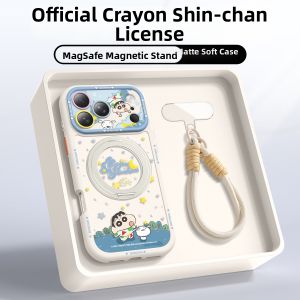
pinsai | Magnetic Stand Silicone Phone Case Hand Rope
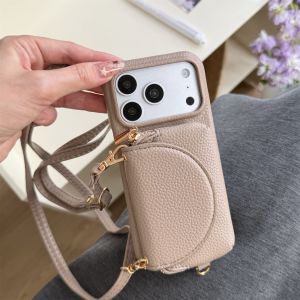
szhaiyu | Lanyard Flip Purse Leather Phone Case for IPhone 16E Air 17 16 15 Plus 14 13 12 11 Pro Max Crossbody Bag Wallet Card Slot Cover
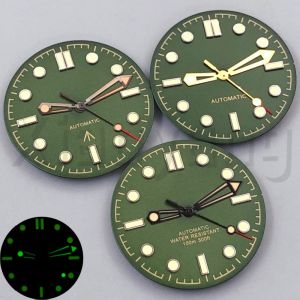
31mm Vintage Green Gold Watch Dial C3 Luminous Fit NH35 NH36 ETA2824 Miyota8215 Mingzhu PT5000 Movement Replacement Watch Parts