

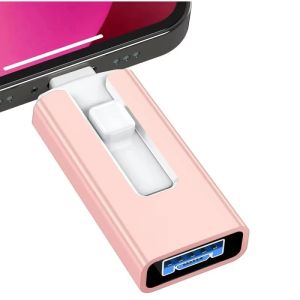
4 in 1 OTG Falsh Drive USB 3.0 High Speed Dual Purpose Android TYPE-C Pen Drive 2TB 1TB 512GB Memory Stick For iPhone Android2026
4 in 1 OTG Falsh Drive USB 3.0 High Speed Dual purpose Android TYPE-C Pen Drive 2TB 1TB 512GB Memory Stick For iPhone AndroidDear buyer, our store started shipping normally. Please make sure you buy. To ensure the speed and safety of logistics, we use standard logistics. Track your shareThe capacity flash memory products are usually shipped according to 1mb=1000kb, 1g=1000mb compute, but the operating system using binary arithmetic 1mb=1024kb, 1gb=1024mb, so there are some differences between the display capacity and the standard capacity memory products.32GB = approximately 28gb-30gb64GB = approximately 58gb-59gb128GB = approximately 110gb-120gb256GB = approximately 230gb-240gb512GB = approximately 468gb-499gb1TB = approximately 880gb-999gb2TB = approximately 1.75gb-1.95gbUsage of USB flash drive without driver.Note: Remove your phone case before use if it prevents the U Disk from fitting properly into the port.For APPLE (iPhone/iPad)1. Connect the SnapStick to your iPhone or iPad.• Using a interface Insert it directly as shown in the first image.• Using a USB-C port Attach the provided adapter to the standard USB connector and plug it.2. Open the Files app on your device.3. Tap Browse in the top-left corner and select the USB stick (usually named “Untitled” or “NO NAME”).4. Navigate to the desired files and tap Select in the top-right corner to choose photos or videos.5. Tap the Share icon in the bottom-left corner and choose Save Video/Photo to store the files in the Photos app.For Android1. Connect the USB Stick to your Android device.• USB-C Plug it directly into the port.• Micro-USB Use the included adapter.2. Allow access to the USB stick.• Tap the notification that says “USB device connected” or “Charging via USB.”• Choose File transfer or Use USB for storage.3. Access the files on the SnapStick.• Go to Settings > Storage (or Device Maintenance > Storage).• Look for USB storage, DISK_IMG, or USB device, and open it.4. Transfer files.• Open your gallery or Google Photos.• Select the photos or videos you want to transfer.• Tap Share > Save to USB storage or a similar option.• Choose an existing folder or create a new one on the SnapStick.Note: On some devices (such as Samsung, Vivo, Oppo, and OnePlus), you may need to enable OTG first via Settings > Additional settingsor Connections. Always verify that files have been successfully transferred before deleting them from your device.Warm Tips:1. To avoid data loss or mechanical damage, do not power down your computer or unplug flash disk during transfer.2. Please do not remove your USB flash drive when it is being used otherwise your data may loss.3. After using USB flash drive, it is better to remove it as soon as possible. That will help to extend its storage lifetime.4. Please do not format your USB flash drive frequently, otherwise the USB will be damaged easily.

Boutique backpack
Review

You May Also Like
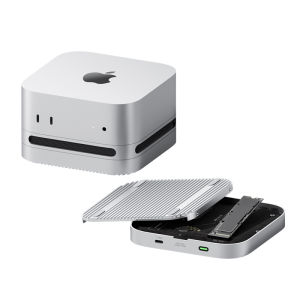
Hagibis | USB4 Thunderbolt 5 SSD Enclosure

Kodak | Kodak Micro SD Card 256GB 128GB 64GB 32GB Class10 U3 V30 High Speed Memory Card for Phone Tablet Camera

ORICO | SATA SSD Hard Drive Enclosure 2.5-inch
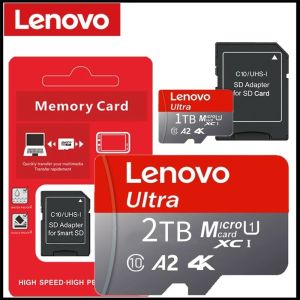
Lenovo TF SD Card Memory Card High Speed TF/SD Mini Memory Card Class 10 128GB 256GB 512GB 1TB 2TB For Camera/Phone/Computer
ORICO 3.5" Hard Drive EnclosureSATA to USB3.0 for SSD HDD PC Laptop Metal+ABS 5GBPS (DDL35)

Charging wind blowing fire passbook ebony creative personality USB electronic trend mens suit

MAIWO 4bay RAID HDD Enclosure Multi-bay SATA Enclosure TypeC 5Gbps Hardware RAID for 3.5 SATA HDD Case with RAID0/1/3/5/1+0/LARGE/Clone 78W Power Adapter
External SSD Hard Disk M.2 SSD Enclosure 10G Reading Writing Speed SSD Case For Dual Protocol M.2 NVME SATA SSD Docking Station

Kodak | Kodak X200 1TB Portable SSD USB 3.1 Type-C External Solid State Drive for PS4 Laptop MacBook PC Tablet Phone 512GB 256GB

High Speed Pen Drive USB 3.0 Flash Drive 128GB 64GB Key Chain Memory Stick 32GB Rotatab Creative Gift 16GB Purple U Disk 8GB

Yottamaster 4/5 Bay USB C HDD Docking Station SATA to USB 3.0 Adapter Hard Drive Enclosure Dock Station with Offline Clone for SATA 2.5" 3.5" SSD HDD