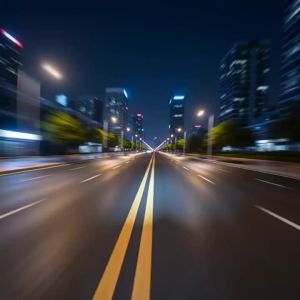


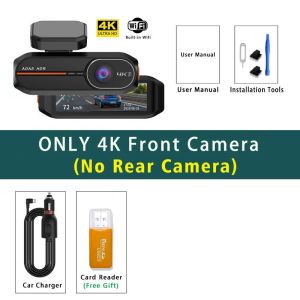
4K 3840*2160P Dash Cam WiFi GPS ADAS Front 4K Rear 2.5K DVR Video Recorder 24H Night Vision Dashcam Car Camera For Car Black Box
Front: UHD 4K 38402160P; Back: UHD 25601440P4K Dual Lens Recording:Experience unparalleled clarity with the 4K+2.5K dual lens recording, capturing every detail of your journey.Night Vision Capability:Never miss a thing with Night Vision capability, ensuring clear footage even in low-light conditions.High-Speed Memory Card Support:Ensure seamless recording with support for high-speed Class 10 memory cards up to 512GB.Important reminder: Due to the high-speed storage requirements of high-definition DVR, please ensure to use high-quality U3 grade branded memory cards with C10 speed.Some low-quality low-priced memory cards on the market may not support DVR to function properly.Supported Languages:English, Chinese, Korean, Japanese, Russian, Arabic, Spanish, Portuguese, Polish, Turkish, French, German, Italian, Hebrew, Indonesian, Thai, Vietnamese. About WIFI Connection:1. Before connecting to the DVR on the phone, it is necessary to install the WIFI connection app "Viidure APP" in advance.You can search for "Viidure" installation in the Apple App Store or Google App Market.2. Open the "Viidure" APP on your phone, enter the configuration mode, turn on the wifi function of the phone, follow the prompts to find the SSID wifi signal(***) of the DVR and enter the password(12345678) to connect;3.After successful configuration, you can connect and operate the DVR through the "Viidure" APP. About 24-Hour Parking Monitoring:If you need the 24 hour parking monitoring function, you can order the corresponding Buck Line accessories to replace the car charger.Through Buck Line, the DVR power can be obtained directly from the car battery or car ACC, so that the DVR can maintain normal recording work even when the car is turned off.(Since different car models have different battery interfaces or ACC interfaces, it is not recommended to install it by yourself.It is recommended to find a professional to install the Buck Line.) About The Installation And Use Of GPS:1. Connect the GPS module to the DVR;2. Install the DVR on the car and start the recording mode. Start the car outdoors and drive for a certain distance. The GPS module will automatically capture the satellite signal and the DVR will automatically record the video with the GPS driving track.Video Playback Of GPS Tracks:1. Install the GPS dedicated video player "Hit GPS Player" on your computer. Please enter the link below in your computer browser to download and install;Download link:https://pcgps.ce2ce.com/hit/hitplayer.html2. Open the recorded DVR video with GPS track information on the computer through "Hit GPS Player" to play back the GPS driving track.

Global Merch Park
Review

You May Also Like
Maniac Line OBSESSION Car Air Freshener Spray 150ml
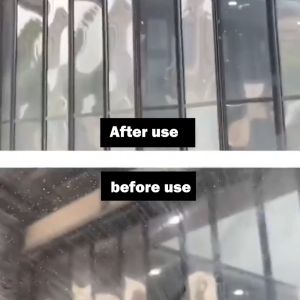
150ml Car Windshield Glass Oil Film Remover Cleaner Anti-Fog Rainproof Remove Dirt Film Stain Remover Remove Clean Oil Film Front Cleaning Car Supplies Car Care Liquid
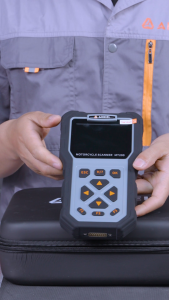
ANCEL MT200 Motorcycle Diagnostic Scanner OBD2 Full System Tool with 12+ Service Reset Fit For Honda YAMAHA Kawasaki Suzuki BMW KTM HERO Motorbike Code Reader Battery / Fuel Injector Detection
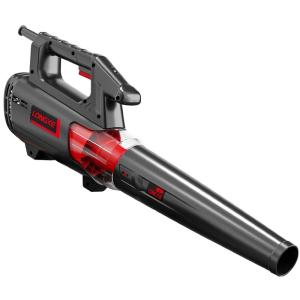
LONGKE | High Power Strong Dust Blowing Gun Industrial Use
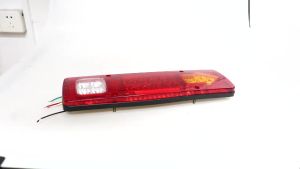
KEVANLY | 2Pcs 12V 24V 19LED Tail Lights Turn Signal Lamp Stop Lights For Trailer Lorries Boat Truck Car Light Assembly Reversing Lights
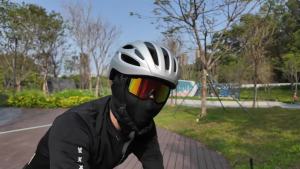
X-Tiger | Ice Silk Summer Balaclava UV Protection Full Face Mask Cycling Motorcycle Helmet Liner Breathable Mesh Men Women Outdoor Sport
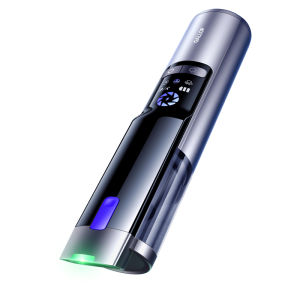
GALLOP | Powerful Handheld Car Vacuum Cleaner
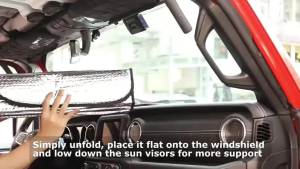
L-Lightning M-McQueen Eyes Car SunShade Windscreen Front Window Visor 70x130cm Sun Visor Solar Protect Plaid Gift Novelty Amagi
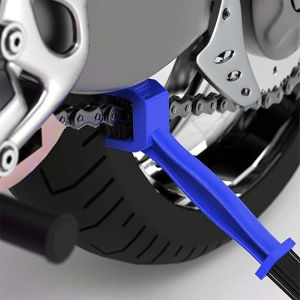
SEAMETAL Motorcycle Bicycle Chain Cleaner Chain Cleaning Brush Motorbike Cycling Wheel Brush Cleaning Tool Accessories
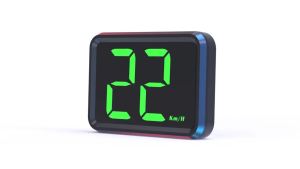
RYSJM | X1 HUD Car Head Up Display White Green Light Display KMH MPH Meter Digital GPS HUD Speedometer USB Plug Big Font For All Cars
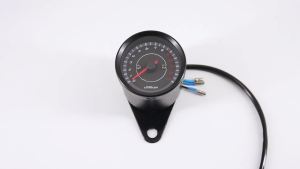
RYSJM | 13000RPM LED Electronic Tachometer Universal 12V Motorcycle Tacho Gauge Meter LED Backlight Tachometer For Honda/Yamaha/Suzuki