
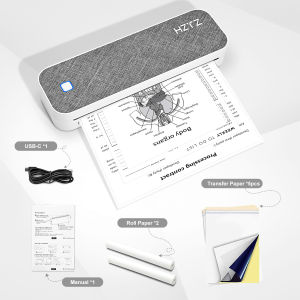
Compact A4 Thermal Printer: Wireless Mobile Printing Mate 652g Lightweight Phone/PC Ready Perfect for Work Travel & Study

Compact A4 Thermal Printer: Wireless Mobile Printing Mate 652g Lightweight Phone/PC Ready Perfect for Work Travel & Study
- Device Setup & ConnectionPower On: Long-press the power button until the indicator light turns on, then release. The printer is now in standby mode.Load Paper: Open the paper cover, insert A4 thermal paper (roll or folded type), ensure the paper is smoothly aligned through the output slot, then close the cover securely.Connection Methods:Wireless Connection: Download the dedicated APP on your phone/tablet/laptop, search for GD-85 via Wi-Fi or Bluetooth, and pair it with your device.Wired Connection: Connect the printer to your computer directly via a Type-C data cable—no extra drivers needed, plug-and-play.Charging: Use a 5V-2A charger to power the printer through the Type-C port. A full charge supports continuous printing of multiple documents. 2. Printing OperationImport Files:Mobile: Import PDF, Word, image, or other file formats in the APP, with online preview and typesetting functions.PC: Select files via the APP or print driver, and adjust settings such as paper size and black-and-white density.Adjust Settings: Customize print density, margins, and other parameters (single-sided printing only) according to your needs.Start Printing: Confirm all settings and tap "Print". The printer will automatically feed paper and complete printing—no ink or toner required.Finish & Tear: After printing, the paper will be ejected automatically. Tear along the edge for clean, long-lasting documents. 3. Application Scenarios & NotesCore Scenarios:Business Office: Print contracts, reports, and invoices while traveling.Study & Life: Print homework, error notebooks, and study materials for students.Tattoo Industry: Quickly print clear, smudge-resistant tattoo stencils.Outdoor Travel: Print urgent documents in vehicles or during trips.Important Notes:Only A4-sized thermal paper is supported; do not use other sizes or non-thermal paper.Avoid using or storing the printer in high-temperature, humid, or strong magnetic environments.Fully charge the printer before first use, and charge it regularly when not in use to extend battery life.If paper jams occur, do not pull the paper forcefully—open the cover and remove it gently.

Prime Supply_Play Life
Seller ratings 95%
Review

Oops
This video has no reviews.
You May Also Like

00:43
Phomemo A6 A7 Waybill Printer – USB & Bluetooth Connect with 30 Free A6 Shipping Labels Inkless Thermal Printer

00:41
Xier | Portable HD Intelligent A4 Document Scanner
00:30
NIIMBOT M3 Thermal Transfer Label Printer for Manufacturer Medical Laboratory Hospital Clinic Office
00:56
(New) Epson EcoTank L3350 All-in-One Printer | Print Scan Copy | WiFi & Mobile Printing | Low Cost Ink Tank | 5760 dpi | Replacement for L3250
00:34
Niimbot M2/M3 Silver Label Heat Transfer Print Paper Fixed Asset Sticker Office Equipment Laser Silver Self-adhesive
00:45
12.7mm Mini Portable Inkjet Printer with Grips 28 Languages Coding Machine for Plastic Text Label Batch Number Logo Date Print

00:21
Youdao Dictionary Pen P3 Pro scanner, Multilanguage Translator Professional Version(CHINESE UI)

00:56
NIIMBOT D110 Thermal Label Printer Portable Bluetooth Inkless Printing Mini Label Maker Home Beauty Office Communication Switch Sticker Label Machine

00:13
TN-2380 Toner (with Original Sensor) TN2380 for Brother HL-L2365DW HL-L2360DN DCP-L2540DW MFC-L2700DW

00:35
Zywell zy307 80mm Thermal Receipt Printer Pos System USB/USB + LAN thermal pos printer receipt printer point of sale

00:30
Niimbot | Clear Multi-functional Label Printer Small Handheld

00:18
Compatible Canon 325 High Quality Black Toner Cartridge for use in LBP6000 LBP6030 LBP6030w MF3010
Hot Search
Bref Blue Active Automatic Toilet Bowl Cleaner - Eucalyptus 50Gtranscend mte220s 1tbYingbao Ready Stock 6pcs Ladies Panty Cotton High Waist Underwear for Women Plus Size Panties Plus Big Sizebiofit plus vitamins for kidsMen s Cargo Pants Top AddToCartcoleman lawsn umbrellasoap nut powderpen ballpoint bluewaterfall sensor tapsfraser vouchermini tv consolejapanese dolls souvenirspregnancy test kit davidmicrosoft macfreddie krueger mask